
 HydraDOCs
Appearance
User Interface
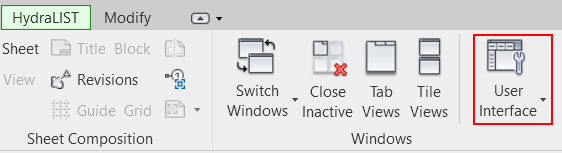
To jump to a video explaining the User Interface button, click here.
User Interface is primarily useful for displaying the Project Browser or Properties box. While these things can be displayed by default, User Interface can be used to get them back if they're ever dismissed on accident.
Summary
- Click on the User Interface button
- A dropdown list of checkboxes will appear
- Select / Check which of the options in the list you'd like to have appear in your Revit UI
- The 2 most useful options are the Project Browser and the Properties box.
Example video of the User Interface Button
How Do I Use The Button?
After selecting the User Interface button shown above, a dropdown list of items will appear.
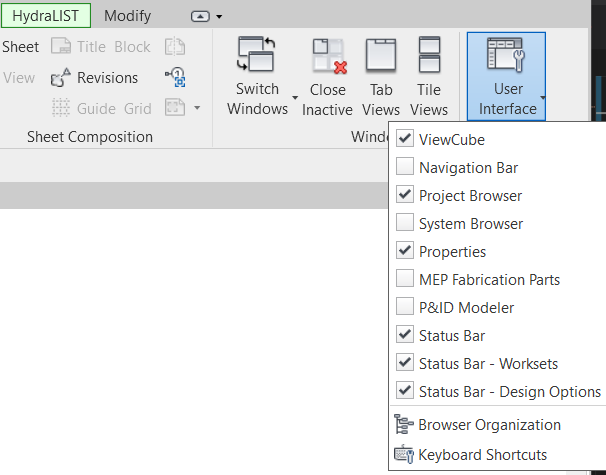
Each of these items corresbond to tool in the Revit User Interface. They need to be checked to appear. In the dropdown list above, the Properties box is checked, and is viewable on the right-hand side of the project.
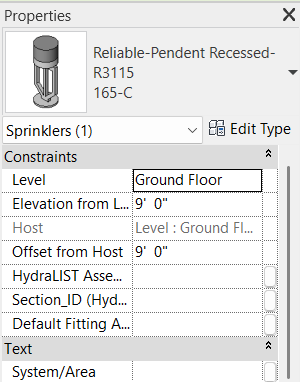
While in the example above, the Properties box is described being on the right-hand side of the screen, it can be dragged elsewhere if you'd like it on the left, or below another UI element, like the Project Browser.
Additional Help (Videos and additional resources)
if we think we should add these for the general buttons
HydraCARDs (Troubleshooting)
if we think we should add these for the general buttons