
 HydraDOCs
Appearance
Convert Project Units
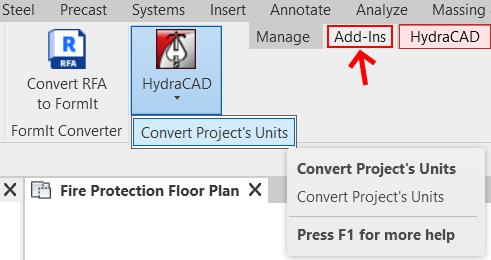
Convert Project Units is used to quickly and painlessly convert an entire project from one system of measurement to the other.
Summary
- Select the HydraCAD dropdown in the Add-Ins menu, to the left of the red HydraCAD menu.
- Select the Convert Project Units sub-option.
- The Convert Project Units dialog box will open, stating...
- The total number of pipes in your current project.
- Which conversion will take place (i.e. Imperial -> Metric)
- It will ask a Yes or No if you'd like to proceed with the unit conversion.
- Note: You may get an error stating "Your project must contain at least 1 pipe. Model a pipe and retry command."
- This tool in intended to be used in a fully-modeled project, and not on a fresh project or blank template.
- If the total count of pipe provided, and the proposed conversion is correct, select Yes.
- A progress bar will appear, showing how much pipe there is left to convert.
- Note: The bigger the project, the slower this command may take.
- Once the conversion is finished, all pipe tags and dimensions will automatically to converted from Imperial -> Metric (Or the opposite, if that's what you selected)
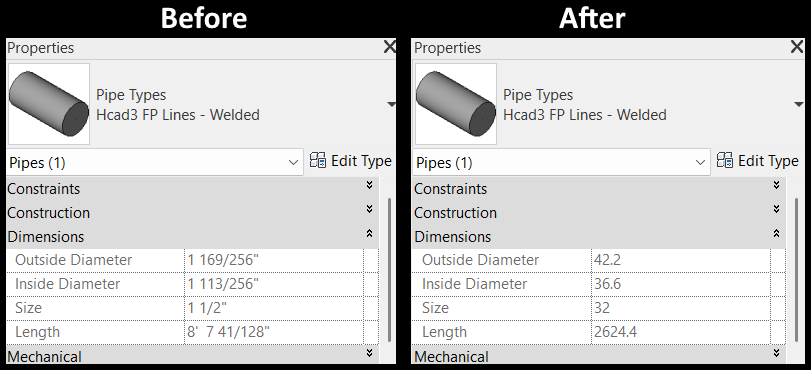
- If you didn't have any pipes tagged, and can't tell if the command finished - check the pipe's dimensions in the Properties browser.
How Do I Use The Button?
Select the Convert Project Units button from the Add-Ins menu, located to the left of the red HydraCAD menu.
There will be a HydraCAD button with pulldown options. Currently there is only one option, Convert Project Units which will open the dialog box.
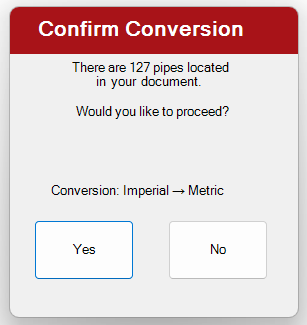
It will automatically detect all pipes in the current project, display the total number of pipe, and ask if you'd like to proceed with unit conversion (Imperial -> Metric, or vice versa).
Note: If you do not have pipe modeled, it will show you this error:
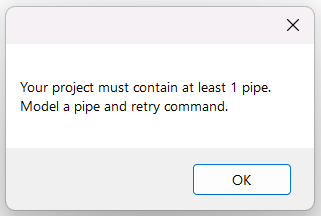
This command is intented to covert from Imperial to Metric, etc.. in a complete project - not an empty template and / or fresh project.
Press Yes to begin the unit conversion.
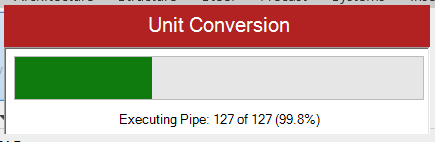
A progress bar will appear, with a live number counter stating how many pipes it has left to convert.
Once completed, all pipe dimensions, etc will be converted from Imperial to Metric, or Metric to Imperial.
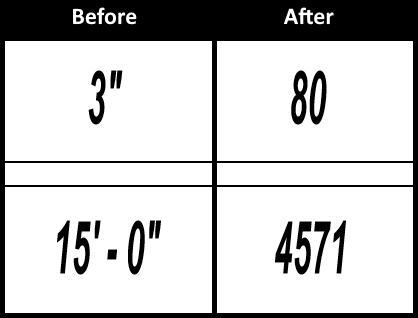
If you don't have any pipes tagged in your current view, you can tell the conversion was successful by checking the Dimensions section of a pipe's properties.
Additional Help (Videos and additional resources)
For more help regarding the Convert Project Units button: click here
For other help that might be relevant to Convert Project Units: click here
HydraCARDs (Troubleshooting)
For HydraCARDs regarding the Convert Project Units button: click here