
 HydraDOCs
Appearance
Align to This, That
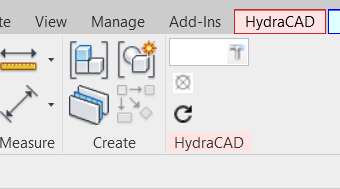
To jump to a video explaining the Align to This, That button, click here.
The Align to This, That button is used to quickly orient two objects to make connection easier. After selecting two objects, the second object will rotate to align its connector in the opposite direction of the first object’s connector. This command will also rotate all connected objects with the selected object.
Summary
- Aligns one object’s open connector to another selected connector.
- Activated by the AA shortcut or by clicking the button in Modify.
- Select the first object near the connector you want to align from, then the second near the connector you want to align to.
- Automatically rotates the second object and all attached elements.
- Repeats automatically so multiple pieces can be aligned quickly.
- Works best when paired with Connect to This/That for rapid assembly of loose parts.
Example video of Align To This, That Button
How Do I Use The Button?
1. Access the Command
- Click the Align to This/That button on the Modify tab or press the AA keyboard shortcut.
2. Understand the Purpose
- The tool aligns the open connector of one object with the open connector of another object.
3. Select the First Connector (“Align From”)
- Hover near the open connector on the first object—the one whose connector orientation you want to use as the reference.
- Click to select that connector.
4. Select the Second Connector (“Align To”)
- Hover near an open connector on the second object—the one that needs to rotate to match the first.
- Click the connector to complete the alignment selection.
5. Review Rotation Prompt (When Applicable)
- If the second object is connected to other elements, Revit may ask whether you want to rotate the entire assembly.
- Choose Yes to rotate everything or No to cancel the command.
6. Align the Connectors
- The tool automatically rotates and aligns the second object's connector to match the first object’s connector.
- The orientation will update immediately in the model.
7. Repeat Automatically
- The command automatically stays active, allowing you to continue picking connectors for additional alignments without restarting the tool.
- Continue selecting a “this” connector and then a “that” connector as needed.
- Use Esc to exit the command.
8. Combine With “Connect to This/That” (Recommended)
- After aligning multiple loose objects, use Connect to This/That to quickly create physical connections between them.
- Both commands repeat, allowing fast assembly of multiple components.
Additional Help (Videos and additional resources)
For more help regarding the Align to This, That button: click here
For other help that might be relevant to Align to This, That: click here
HydraCARDs (Troubleshooting)
For HydraCARDs regarding the Align to This, That button: click here
For other relevant HydraCARDs: click here