
Appearance
Show System Model
Layer(s): HydraPipes, Error
Shortcut: S3D
Associated: Switch to Edit Mode / Go to 2D
Ribbon: Elevate Panel
Elevate the drawing to switch to 3D Model mode. This process will calculate and update sprinkler elevations, computer generated center-to-center hanger lengths, and drop and riser nipple lengths.
The process will also check for drawing errors. If found, ERROR objects will be added to the drawing at the error location and the HydraCAD Errors dialog box will open.
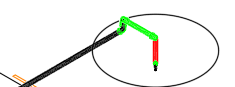
The figure here shows a circle around a sprig that the program has found a problem with. The circle is an ERROR object.
The HydraCAD Errors dialog identifies the sprig or drop in the Error Message. In this example, you are viewing the first of seven errors. With Zoom to Error checked, pressing |< (First), < (Previous), > (Next) or >| (Last) will zoom to the appropriate Error. Outside this dialog box, you can also hover over the error to open a tooltip explaining the error.
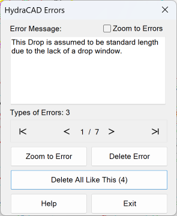
Here there was no sprig window, so all the sprigs were assumed to be a standard length of 1'-0", as implied by the error message.
You can delete an error block by picking Delete Error. Pick Delete All Like this to delete all of the same type of error message.
Note: Some reported errors may not need attention as they are informational or not critical.
You can open the HydraCAD Errors dialog box by pressing the Show Model Errors button on the 3D Modeling toolbar. The dialog box will open only if there are ERROR objects on your drawing.
HydraCARDs (Troubleshooting)
For HydraCARDs regarding Show System Model: [Click Here]