
 HydraDOCs
Appearance
Viewbase

The AutoCAD Viewbase command offers a great way to display views of 3D models for plotting.
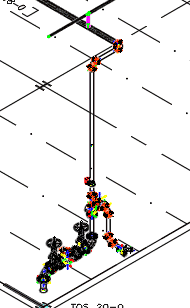
Once your 3D Riser is complete, you are ready to plot in a Paper Space layout.
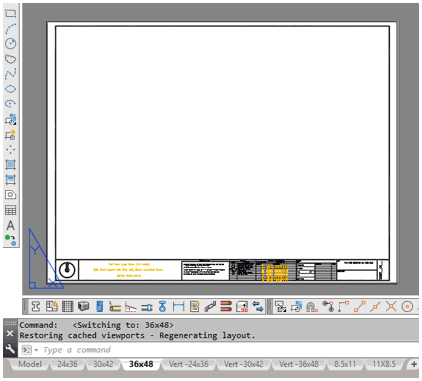
Select a Layout tab or create a new one for your 3D Riser detail drawings. The 36x48 tab is selected here.
There are no viewports created.
Start the Viewbase command from the 3D Risers toolbar.

You can also enter Viewbase at the command line or select it from the AutoCAD > Layout > Create View ribbon panel.
You will be prompted to Specify model source. Press Enter to select Model space.
The AutoCAD ribbon will switch to the Drawing View Creation tab.
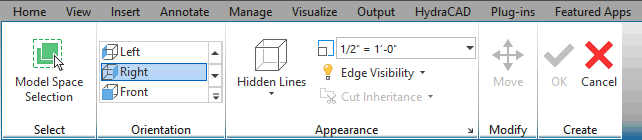
Here, you can set the View Orientation, the Scale and other settings. Set the Orientation to Right and the Scale to ½” = 1’-0”.
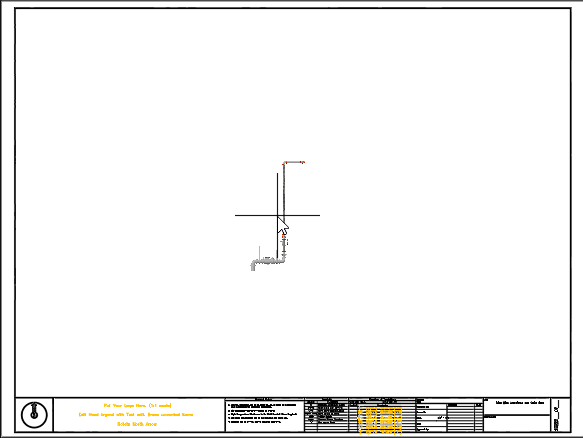
As you hover over the plot area, the image of the riser will appear. Pick around the center of the sheet and right click to Exit.
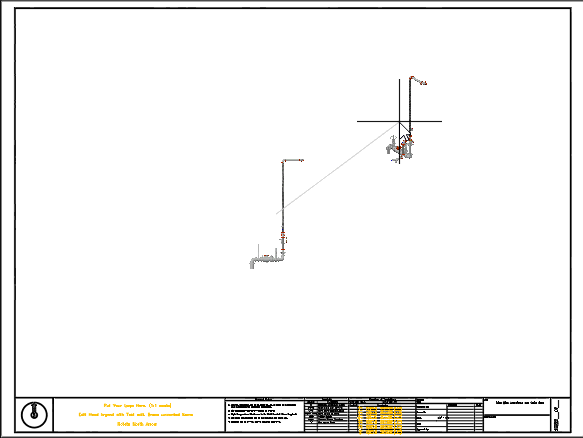
Now, as you move your mouse around the sheet, different views will be presented depending on the cursor location.

Pick the views you would like and right click to finish. Now, you can dimension the detail. There are more variables for the command. For more information, see the Viewbase topic in AutoCAD Help.
HydraCARDs (Troubleshooting)
For HydraCARDs regarding Viewbase: [Click Here]