HydraDOCs
Appearance
Flip towards Yellow Spade
Layer(s): NONE
Ribbon: Insert Panel
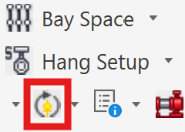
Flip an inserted fitting or Ski Pole using the Yellow spade direction.
Components are inserted in the direction indicated by the blue spear symbol. The Flip towards Yellow Spade command will rotate the blue spear to the existing position of the yellow spade. When a Ski Pole is attached to an object, both the object and the Ski Pole will rotate.
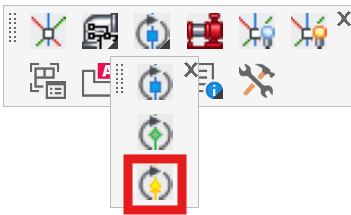
Select Flip towards Yellow Spade from the Build 3D Risers toolbar.
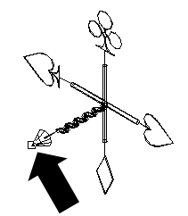
Next, select any location on the Ski Pole. This will ensure that the Ski Pole origin is used as the rotation point. The Ski Pole origin is the point where all five symbols intersect.
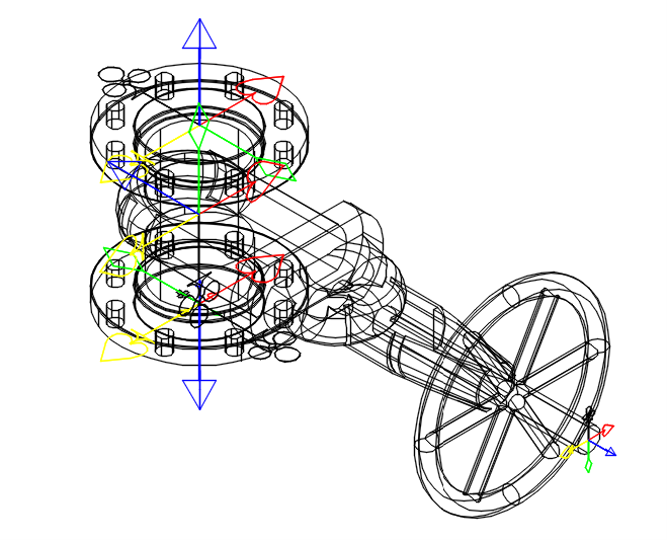
You must now select an object or objects to rotate about the origin. Select the object to be rotated. In this example, the Ski Pole was selected. You will be prompted at the command line to enter a rotation angle in degrees. This will be the number of degrees to rotate the object from the original blue spear of the original Ski Pole picked towards the yellow spear of the original Ski Pole picked.
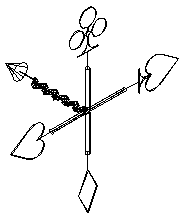
For this example, 90 was entered. The blue spear is flipped to the previous location of the yellow spade symbol as shown.
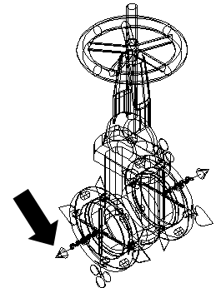
An object can also be moved. For example, the gate valve with Ski Poles shown here can be rotated with the same technique.
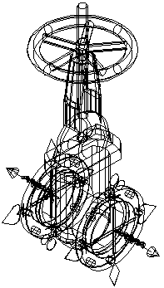
Select Flip towards Yellow Spade.
Select the Ski Pole that will be used as the rotation point as shown. The Ski Pole origin will be used as the pivot point.
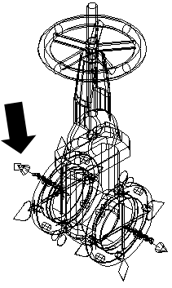
Next, select any portion of the gate valve or attached Ski Poles to indicate that this is the object to be rotated.
The blue spear symbol will move to the yellow spade location. The object and the other Ski Pole also move with the changed Ski Pole.