
 HydraDOCs
Appearance
Listing Cleanup Tools
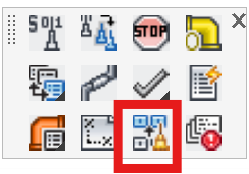
Layer(s): DMN3
Shortcut: CLT
Associated: Move That There
Ribbon: Cleanup Panel
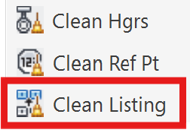
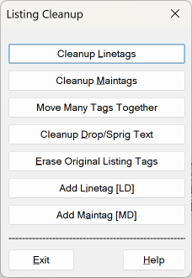
Cleanup Linetags/Maintags
Move cluttered Line and Main tags. Pick tags to clean. Only Line or Main tags will be selected. Then, pick a new location for each tag in alphabetical/numerical succession. You can choose a new location, or Right-Click the mouse to leave the tag where it is.
Move Many Tags Together
Move cluttered Line and Main tags. Pick tags to move as a group. Only Line or Main tags will be selected. Then, pick a new location and all tags will be moved at once. This is useful for a series of line tags in that they will remain lined up when moved.
Cleanup Drop/Sprig Text
Move cluttered Drop and/or Spring text. Specify whether you want to move Cut or Center dimension text. Select text or right-click to get all. Only drop or sprig text will be selected. The utility will cycle through the selected text for you to choose new locations.
Erase Original Listing Tags
Erase listing IDs placed when the listing tags were originally inserted. If you chose to Tag each Welded/Line, then the originals could end up as duplicates.
Add Linetag (LD)/Add Maintag (MD)
Insert 'dummy' line and main tags for clarity and to assist fab and the field. These do not affect an AutoList.
HydraCARDs (Troubleshooting)
For HydraCARDs regarding Listing Cleanup Tools: [Click Here]