
 HydraDOCs
Appearance
Listing Check Ups
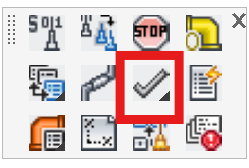
Layer(s): ERROR
Shortcut: LCH
Associated: View Checkup Errors
Ribbon: Process Panel
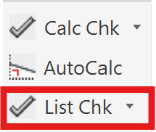
An automated routine used to check the drawing before running AutoList. It will check for a multitude of errors which would make it difficult or impossible to obtain a correct stocklist from your drawing.
Select AutoList Check as the Diagnostic Type. This will preset all the options you will need for an AutoList checkup.
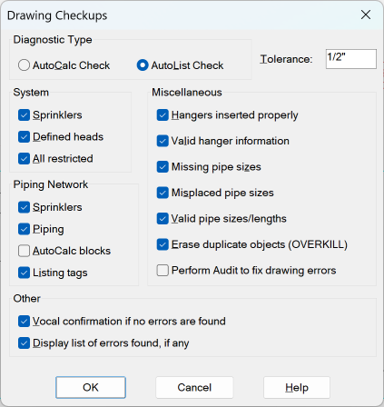
The Tolerance controls the Piping Network options. It is the distance that will be used around each end point to detect if a pipe or sprinkler is connected. Any heads not on a pipe but within this tolerance to a pipe will be moved to that end of that pipe. Also, any pipes equal to or shorter than this tolerance will be erased. Any pipes with a gap to a nearby pipe will be stretched to meet other pipes found within this tolerance. It is advisable to leave the default at 1/2" (12.5mm). If the Tolerance is set too large, important piping may be erased. For example, if the Tolerance is set to 6" (150mm) and you have 4" (100mm) armovers on your drawing, the armovers will be erased.
Under the System section, the Sprinklers, Defined Heads and All restricted (which includes pipes, hangers, risers, etc.) options check to make sure all sprinkler heads are in the proper layer, that only AutoCAD Lines are found in the piping layer, and that nothing unanticipated is found in the other restricted layers.
In the Piping Network section, the Sprinklers option checks to make sure all heads are connected. If some are not, but within the Tolerance mentioned earlier, they will be moved to the nearest pipe endpoint or flagged if outside it. Piping deletes pipes shorter than the Tolerance and stretches pipes to coincide if a gap is found between pipes that is less than the Tolerance. Unconnected Listing Tags will be moved to nearby pipes or sprinklers if falling within the Tolerance specified.
Under Miscellaneous, Hangers inserted properly checks to see if each hanger is touching a pipe. Valid hanger information checks the syntax of each hanger to ensure that the text of that hanger has not been altered. Missing pipe sizes flags any pipes that are found without a size on them. Misplaced pipe sizes moves sizes to the nearest midpoint within the tolerance or flagged if outside it. Valid pipes sizes/lengths check for proper formatting and characters in these strings. Erase duplicate objects (OVERKILL) runs the AutoCAD OVERKILL command, internally preset to only erase duplicated pipes. Perform Audit is also an option. This will perform an AutoCAD AUDIT to check for internal drawing errors.
Other has two options. Verbal confirmation if no errors are found will give you audio stating "Congratulations" if no errors are found. This can cause hardware errors on certain computers, so the option can be deselected and that setting will be recorded in the registry as a default. Display list of errors found, if any will launch a dialog box of found errors, if any. This is the same dialog launched by the View Checkup Errors command on this flyout.
Running Checkups
Press OK to begin checking. Check Ups will ask you to pick the System Boundary you want to check. If there are no boundaries, it will only check those entities visible on the screen, so zoom to what you want checked. After you have found and corrected any errors, run Checkups again to make sure.
Check Ups should correct most of the errors that it finds. Those errors it cannot correct will be tagged with error messages and a total given:
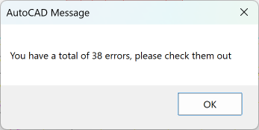
Use these messages to diagnose and manually correct the errors.
If you have no errors, you will get this dialog:
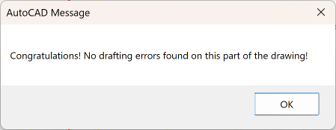
You will also get a verbal confirmation of "Congratulations" if the option Verbal confirmation if no errors are found is selected and you have no found errors.
Errors
If you have errors, yellow and/or red error tags will be inserted on the drawing. Minor errors (yellow) denote possible problems, but AutoList should still run through. Major (red) errors denote serious problems that must be corrected or AutoList will crash or stop with a warning.
If the Display list of errors found, if any option is checked, and there were indeed errors, then you will also see a dialog box of those errors. This is the same dialog launched by the View Checkup Errors command on this flyout.
The Check Ups routine will correct most of the errors that it finds. Those errors that it cannot correct will be tagged with error messages. Use these messages to diagnose and manually correct the errors.
A sample error message is shown here. Press on OK to return to the drawing and check for flagged errors.
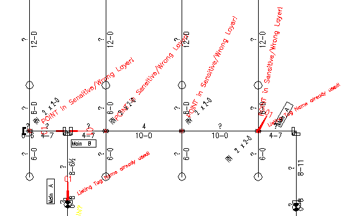
Error messages are colored red (severe) or yellow (warnings). You can use View Checkup Errors to help to identify problems. Correct the errors and run Check Ups again until the drawing is error free before attempting to run AutoList.
HydraCARDs (Troubleshooting)
For HydraCARDs regarding Listing Check Ups: [Click Here]