
 HydraDOCs
Appearance
Listable Dynamic Block
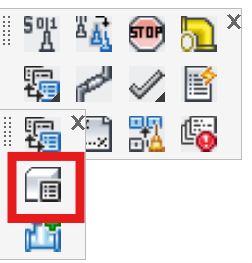
Layer(s): SPRNK2
Associated: Add Loose Material
Ribbon: Process Panel
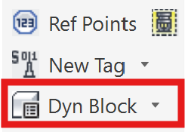
Insert prepared blocks that will be picked up by AutoList.
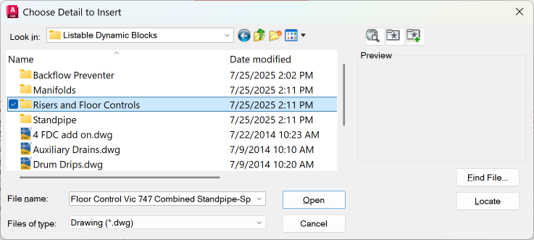
Choose a file from the Listable Dynamic Blocks folder or sub-folder. Press Open.
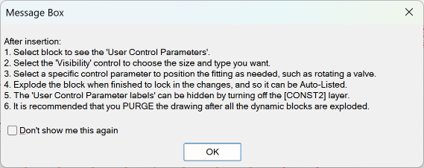
A message box will appear providing instructions on how to use the blocks. Press OK and you will be asked to pick a point on the drawing.
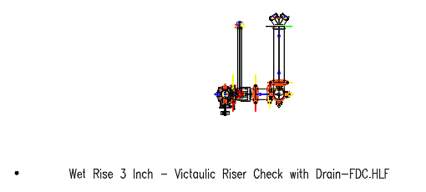
The Wet Rise – add on.dwg file was selected here. Pick on the block to enable the control parameter icons. The block is a 3D model that can be observed from different views.
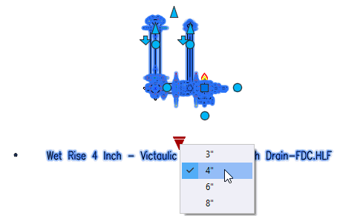
You can adjust many of the parameters of the block by picking on the triangles, dots and arrows. Here, a triangle has been selected where the riser size can be selected.
The block properties can also be manipulated with the Quick Properties or Properties dialog box.
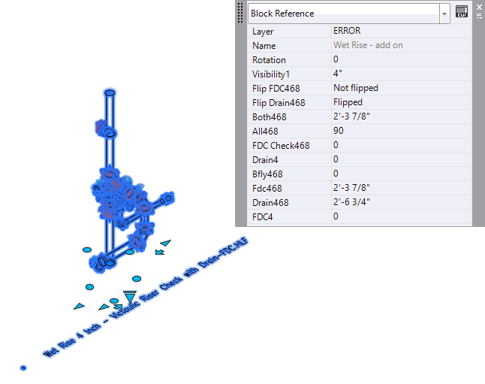
When you are satisfied with the settings, enter Explode at the command prompt and select the block.
The control parameter icons are on the CONST2 layer which is turned off when you run a stocklist.
You should also use the AutoCAD Purge command to purge the dynamic block from the drawing.
HydraCARDs (Troubleshooting)
For HydraCARDs regarding Listable Dynamic Block: [Click Here]