
 HydraDOCs
Appearance
Merge Partial List
Layer(s): SPRNK2
Associated: Add Loose Material
Ribbon: Process Panel
Insert a prepared partial stocklist that will be picked up by AutoList. There are several pre-made Partial Lists available, or you can make your own. This is handy for adding assemblies to your drawing that you commonly use such as test connections, drains and riser components.
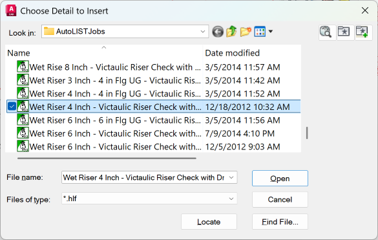
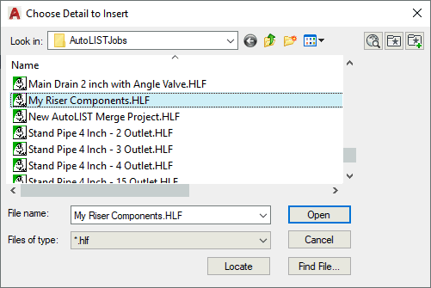
Select a file from the list and select Open. You are prompted to Please pick insertion point.

Pick a point on your drawing. The block contains all of the items added to the Partial List. When you run AutoList, the items comprising this kit will appear in the Miscellaneous Screen of HydraLIST.
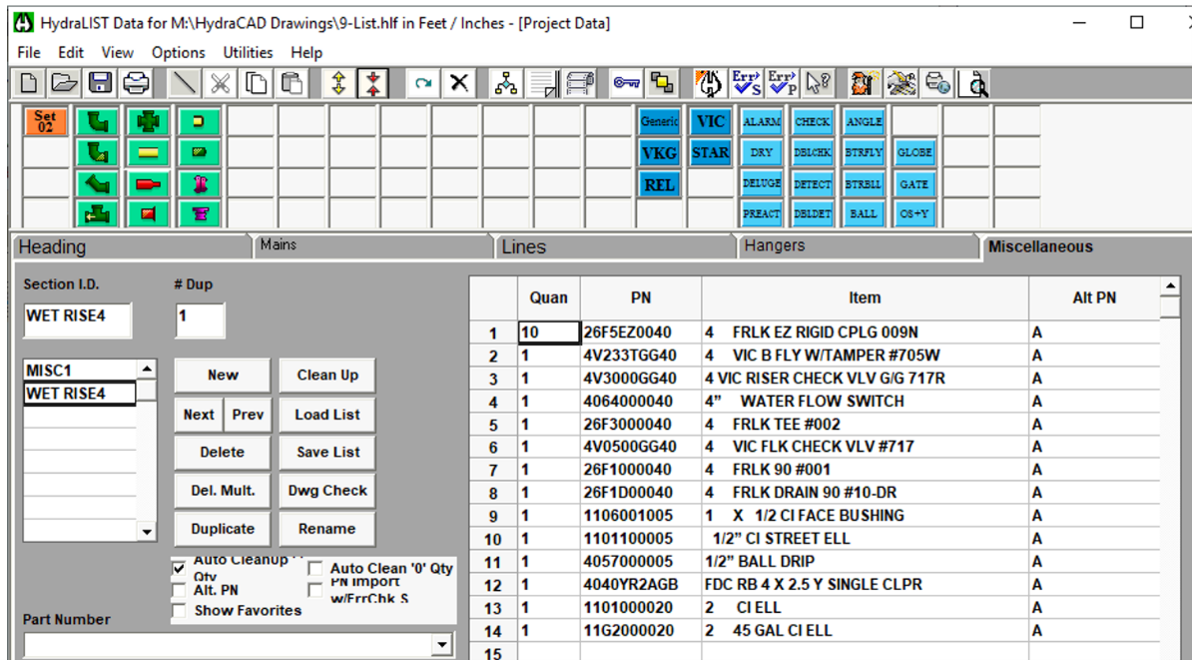
Some items will require adjustment when in HydraLIST.
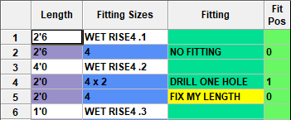
Here is a Wet Riser Merge Project. The row requiring a length adjustment is tagged with FIX MY LENGTH. Enter the correct length and delete the tag.
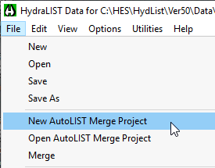
To create your own partial lists, open HydraLIST and select New AutoList Merge Project from the File menu.
The program will navigate to the \HES > Hydlist > Ver50 > Data > Setup > AutoLISTJobs folder.
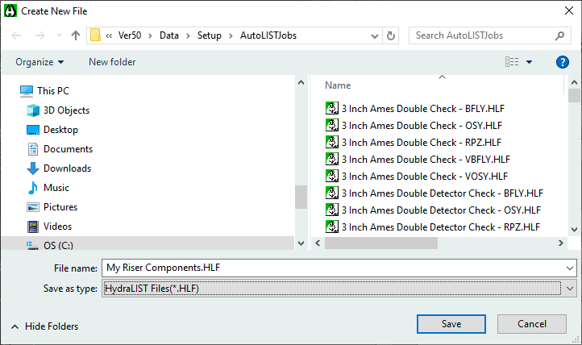
Give your Partial List a file name.
Go to the Miscellaneous Screen, Create a New Section ID and gather your items.
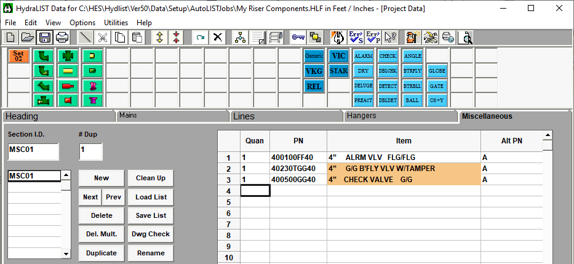
Save your file and exit HydraLIST.
The next time you start the Merge Partial List command, your file will appear in the list.
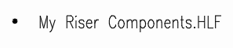
The inserted block will display the HydraLIST file name.
HydraCARDs (Troubleshooting)
For HydraCARDs regarding Merge Partial List: [Click Here]