HydraDOCs
Appearance
Presentation and Viewing of 3D Risers

The appearance of 3D drawings can be changed using Visual Styles.
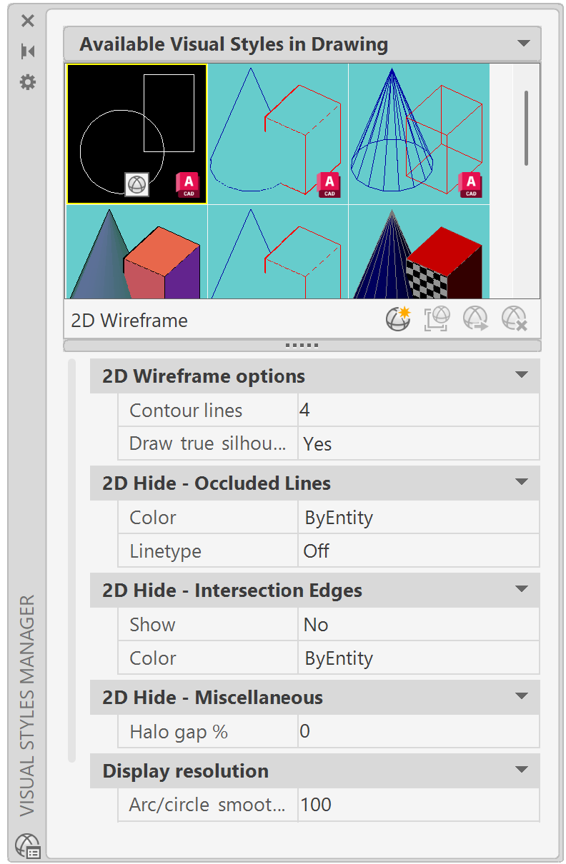
You can open the Visual Styles Manager from the Visual Styles toolbar, the Palettes panel of the View tab on the ribbon, or by entering VisualStyles at the command line.
AutoCAD has several preconfigured Styles that are available. Double click on a Style to change your drawing in either the VS Manager or the Visual Styles toolbar.
The default visual style in the editing screen is 2D Wireframe.
Other options include 3D Hidden, Conceptual and Realistic. Realistic will create a photo like rendering of your model.
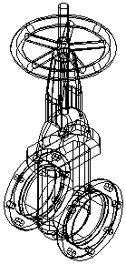
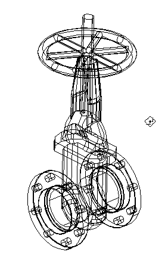
The flanged OS&Y gate valve on the left is shown in the normal 2D Wireframe Style. All lines, including those in the back of the valve, are shown.
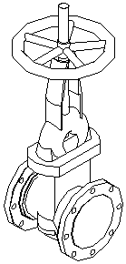
The view on the below is the result of using the 3D Hidden Style.
For more information on this topic, see Visual Styles in AutoCAD Help.
3D Orbit allows you to rotate an object in 3D space.
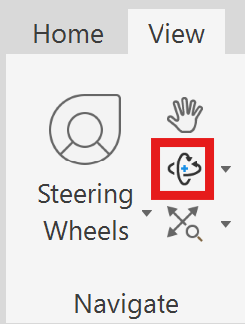
Start the command, press the left mouse button and move the move to change the perspective.
Press Esc to exit from 3D Orbit.
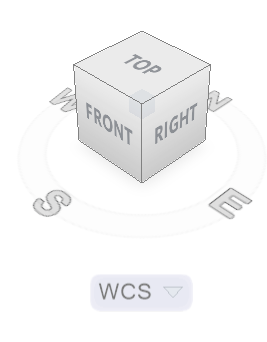
The AutoCAD View Cube also offers an easy way to change the model perspective.
Plotting 3D Risers
The wire frame lines in your 3D drawings may appear untidy when plotting. AutoCAD allows you to use the Hide command in any viewport for the purpose of plotting.
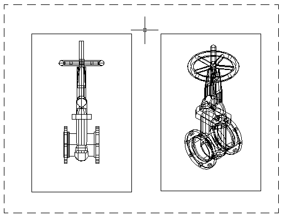
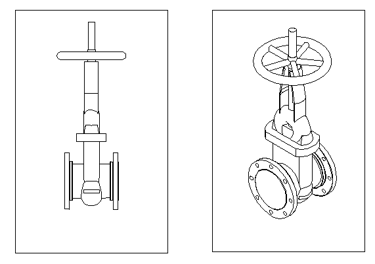
Here are two viewports with different views of the same OS&Y gate valve in paper space.
The wire frame lines cause both views to appear cluttered.
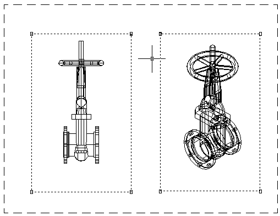
You can hide the wire frame lines by selecting the viewports.
You can select both viewports as shown here or select them individually.
Right-click with your mouse and select Shade plot and 3D Hidden.
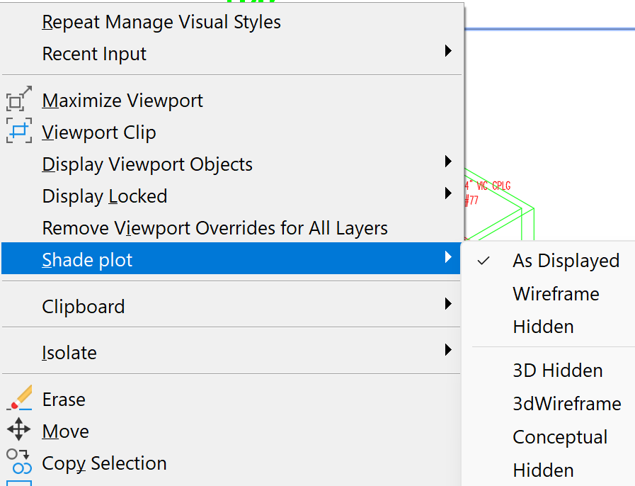
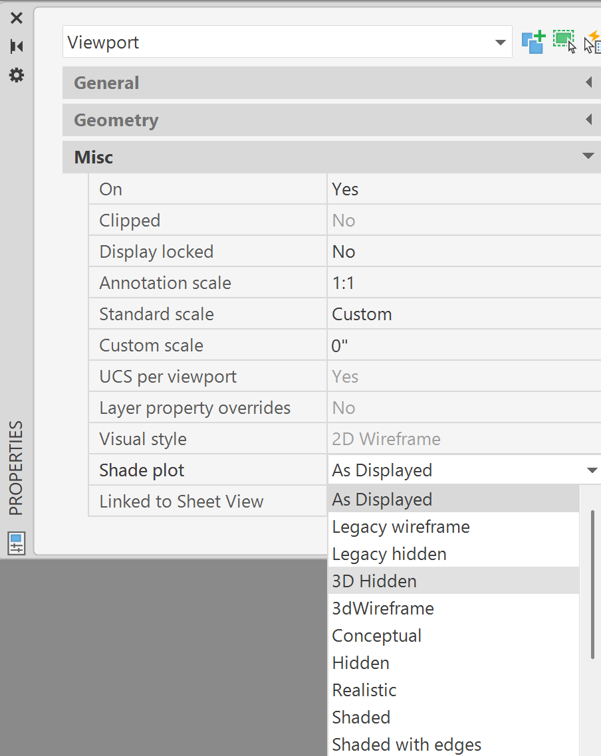
Or select Properties from the Right-click menu to view the Viewport settings.
Select Shade plot and 3D Hidden as shown.
The wire frame lines will disappear when in the plotted version of your drawing as shown below.