
 HydraDOCs
Appearance
Make Legend
Layer(s): NONE
Associated: Viewports
Shortcut: MLG
Ribbon: Insert Panel
Create a legend for 3D fittings. This command works only in paper space.
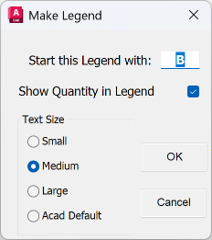
There are three areas for input that control the Legend appearance. The Start this Legend with edit box provides an initial ID value for the fittings in your legend.
The Show Quantity in Legend check box gives you the option to display a quantity column in your legend.
The Text Size radio buttons control the size of the text displayed in your legend.
Select all parts and pipes in the 3D detail to be included in the Legend. Non-detail items such as dimension text and lines will be automatically filtered out. The order in which you select the items determines their position in the Legend. Once your selection is complete, Right-Click.
When starting with A, a legend of 26 items can be built at one time. If you have more than 26 separate items, you will need to restart the legend with a new ID such as AA. If there are multiple quantities of any one item, there will only be one entry on the legend, and they will have the same tag from the legend.
The Legend can be positioned at any location in paper space.
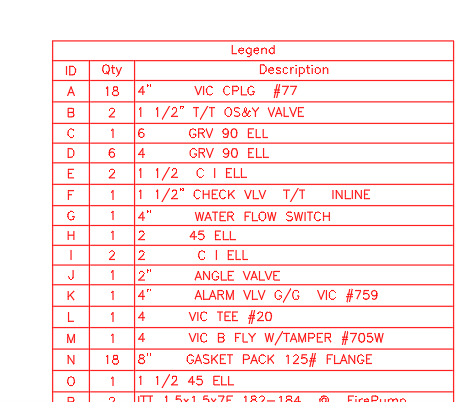
There are three columns containing information about each selected item. The ID column assigns an identifier which will match Legend tags when inserted. The Qty column indicates the number of each part that you selected for the Legend. The Description column provides information that is found in HydraLIST for each part.