
 HydraDOCs
Appearance
Inserting 3D Pumps
Layer(s): 3D_DETAIL,CONST3D
Shortcut: I3D
Ribbon: Insert Panel
Configure and insert a 3D Pump.
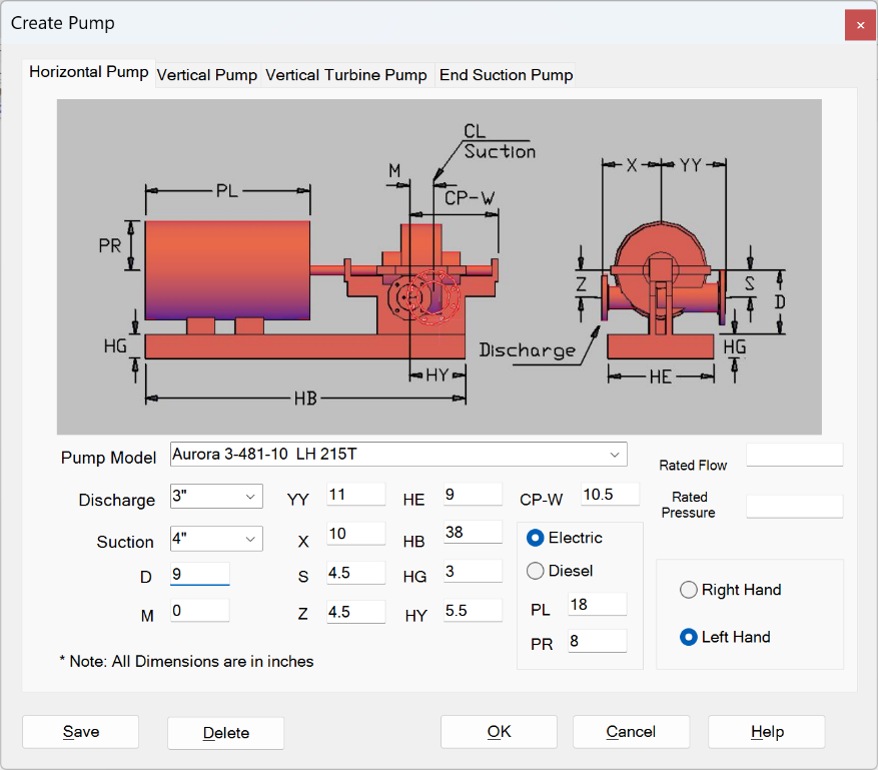
You can create Horizontal, Vertical, Turbine and End Suction pumps through the tabs at top.
Many pre-designed pumps are included with the software. You can select such pumps from the Pump Model drop down list as shown here.
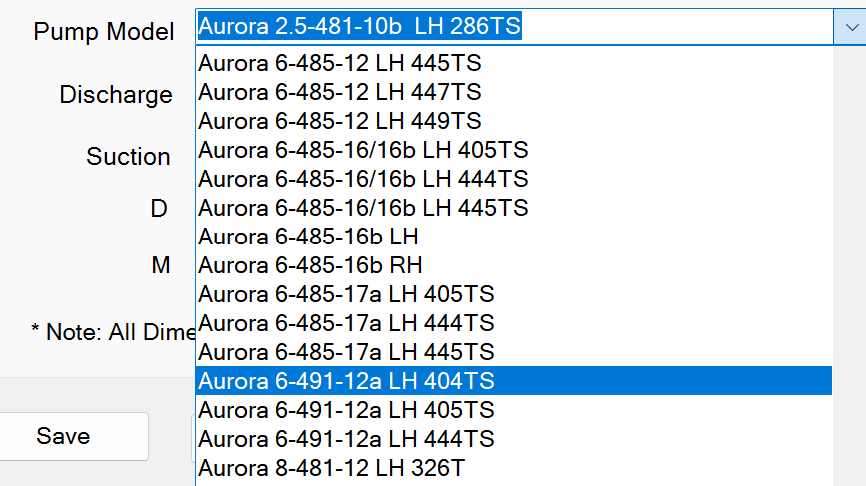
Pump dimensions are automatically inserted in the cells when a pump is selected from this list. The values in the cells correspond to dimensions shown on the diagram at the top of the dialog box.
Press OK to insert this pump into your drawing. It will be inserted into the center of the current view. You can then move it to the correct location.
If you cannot find your pump in the Pump Model drop down list, you can create a new pump drawing based on the manufacturer's specifications.
Type a name for your pump in the Pump Model cell, such as Gould Model 3405 4 X 6 – 17.
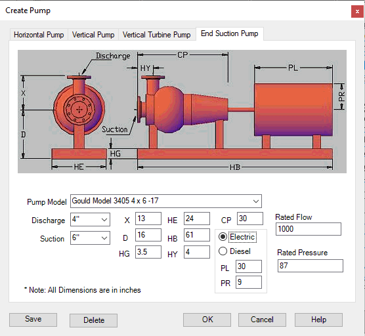
Fill in all cells using the key diagram at the top of the screen with the manufacturer's specifications.
Press Save to add the pump to the pull-down list if you want to recall it for future jobs. Pick Delete to remove it permanently from the list.